
Invite people to a workspace
Bring teammates into a workspace with an invite link, see who's a member, and remove people when they no longer need access.
An invite link joins someone to one workspace: the one you create it from. Your other workspaces stay private.
Steps
- Open the account menu at the bottom of the sidebar and choose Dashboard.
- Check the workspace switcher shows the workspace you want to invite people to. The card reads Invite someone to followed by its name.
- Select Create invite link.
- Select Copy and send the link to your teammate however you like.
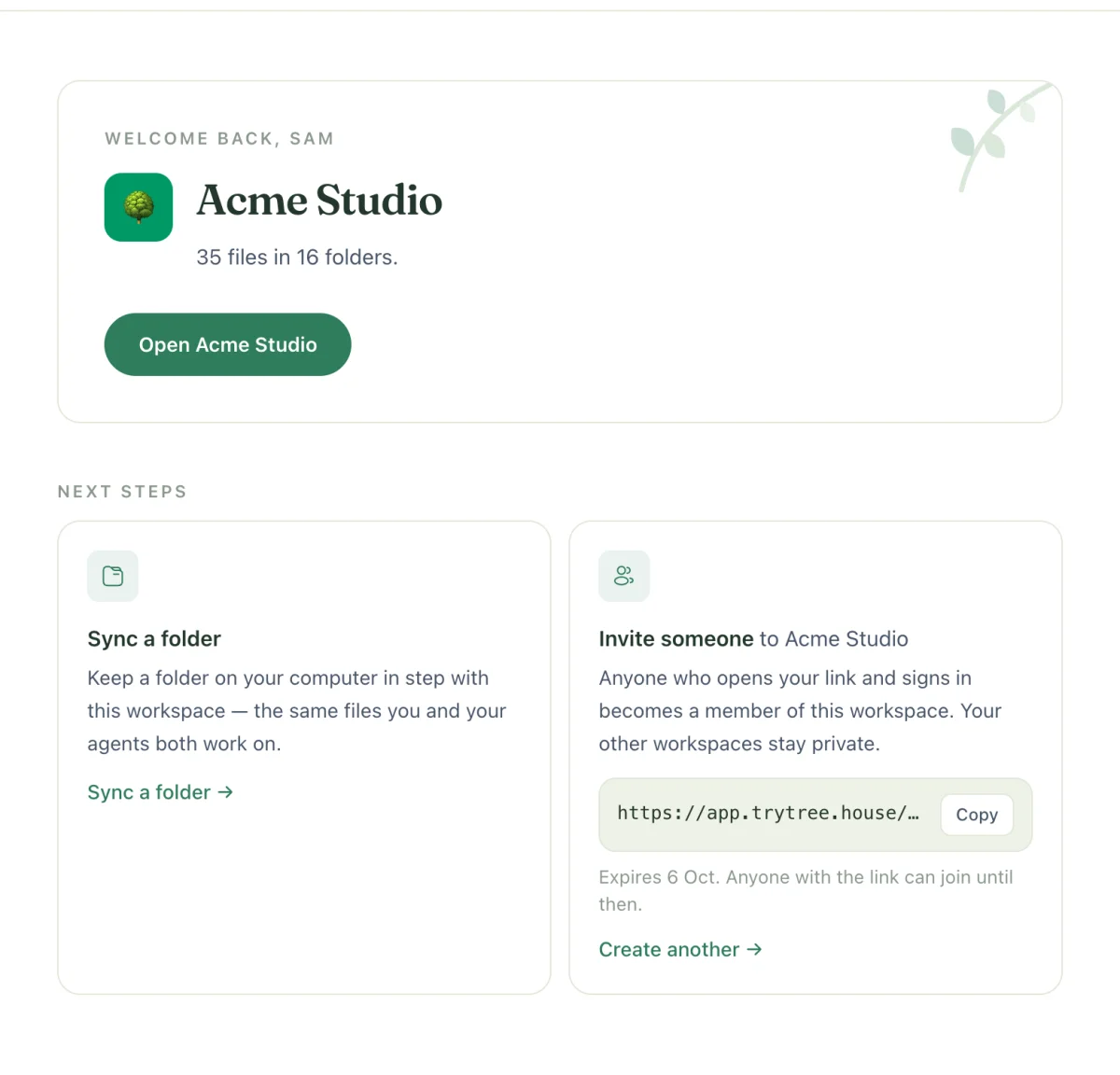
Under the link you'll see Expires with a date, and "Anyone with the link can join until then." Every invite link:
- lasts 7 days;
- can be used by any number of people until it expires;
- makes each person who joins a Member.
Any member of the workspace can create one. Select Create another for a fresh link, for example to give each person their own.
What your teammate sees
- They open the link. If they aren't signed in, they're asked to sign in first and then brought back. If they need to create an account, they should open the link again once they have.
- They see Join followed by the workspace name, and select Accept invite.
- They see You're in 🌳. On an Apple silicon Mac they're offered Open in Treehouse and Download for Mac (Apple Silicon) to sync the workspace to a folder. Everyone can open the workspace in the browser straight away.
If the link has a problem, they see Invite unavailable with the reason, such as "This invite link has expired." Ask a member for a new link. Someone who's already a member can open an old link at any time: it just takes them in.
Seats and billing
On a paid plan, every member is a seat. When someone accepts an invite, a seat is added to the workspace's bill straight away, charged pro rata for the rest of the billing period. Removing someone takes the seat off the same way. The price per seat is shown on the invite card and in the members panel. Agents and the people you share links with don't count as seats.
See billing for the details.
Roles
Each member has one of three roles, shown next to their name in the members panel:
| Role | What they can do |
|---|---|
| Owner | Everything a member can, plus remove members (including other owners) and manage billing. The person who created the workspace is its owner. |
| Admin | Everything a member can, plus remove members (but not owners) and manage billing. |
| Member | Read and write every file except other people's private files, comment, create invite links and share links, and connect agents. |
Everyone who joins through an invite link is a Member. Roles can't currently be changed in the app. There's no read-only role: for people who should only read, use a share link.
See and remove members
Open the account menu and choose Members to see Who can see the workspace and each person's role.
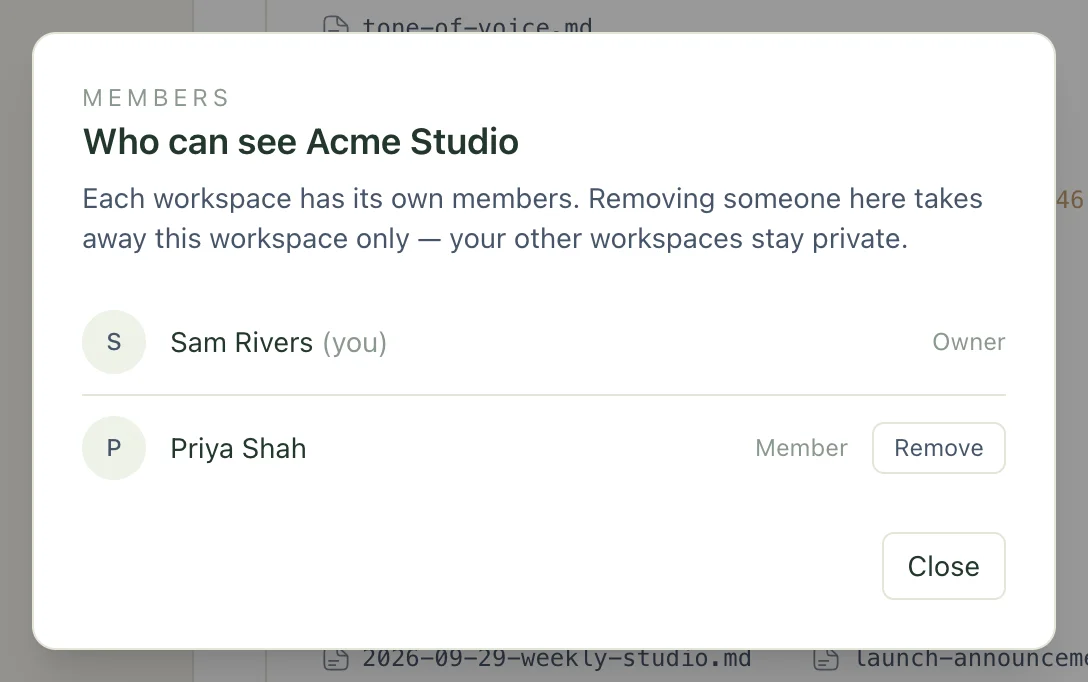
Owners and admins see Remove next to people they can remove. An admin can't remove an owner, only an owner can, and a workspace always keeps at least one owner. You'll be asked to confirm: "They'll lose access to its files, and any folder they sync from it will stop syncing."
To leave a workspace yourself: if you're an owner or admin, select Leave next to your own name. If you're a member, ask an owner or admin to remove you. The last owner can't leave.
What happens when someone is removed
- They lose access to the workspace's files straight away, in the web app, over MCP and through the API.
- Any folder they sync from it stops syncing. The files already on their computer stay there.
- Keys tied to this workspace, such as their desktop app and CLI device keys, are deleted.
- Their account-wide API keys stop working for this workspace, though they still work for any other workspace they belong to.
- Their past changes, comments and history stay, so the activity feed still shows who did what.
- Their other workspaces aren't affected.
Troubleshooting
Why does creating a link say "Your plan is for one person"?
The workspace is on Seedling, which allows one member. An owner or admin can upgrade to Grove or Forest from the same notice.
My teammate's link says it has expired. What now?
Links last 7 days. Create a new one from the Dashboard and send that instead.
Related
- Share a file or folder with a link
Send members straight to a file, or give anyone read-only access to a file or folder, with an optional password and a pinned version.
- Upgrade and manage billing
Move a workspace onto Grove or Forest, understand how seats are charged, and what happens if a payment fails or you cancel.
- Manage API keys
Create a key for each agent, see which keys can reach your workspaces, and revoke the ones you no longer need.
Last updated