
Manage API keys
Create a key for each agent, see which keys can reach your workspaces, and revoke the ones you no longer need.
An API key lets an agent, script or command-line tool act on your behalf. Keys are personal: a key can only reach workspaces you're a member of, and it stops working for a workspace the moment you leave it.
Create a key
- In the web app, open the account menu at the bottom of the sidebar and choose API keys.
- Enter a Name. This is the label the activity feed shows next to everything the key does, so name it after the agent or machine:
claude-code,inbox-filer,build-server. - Choose Used by:
- Agent (MCP) for an agent. Its changes are marked as an agent's.
- Human (CLI) for your own scripts and tools. Its changes are marked as yours.
- Select Create key.
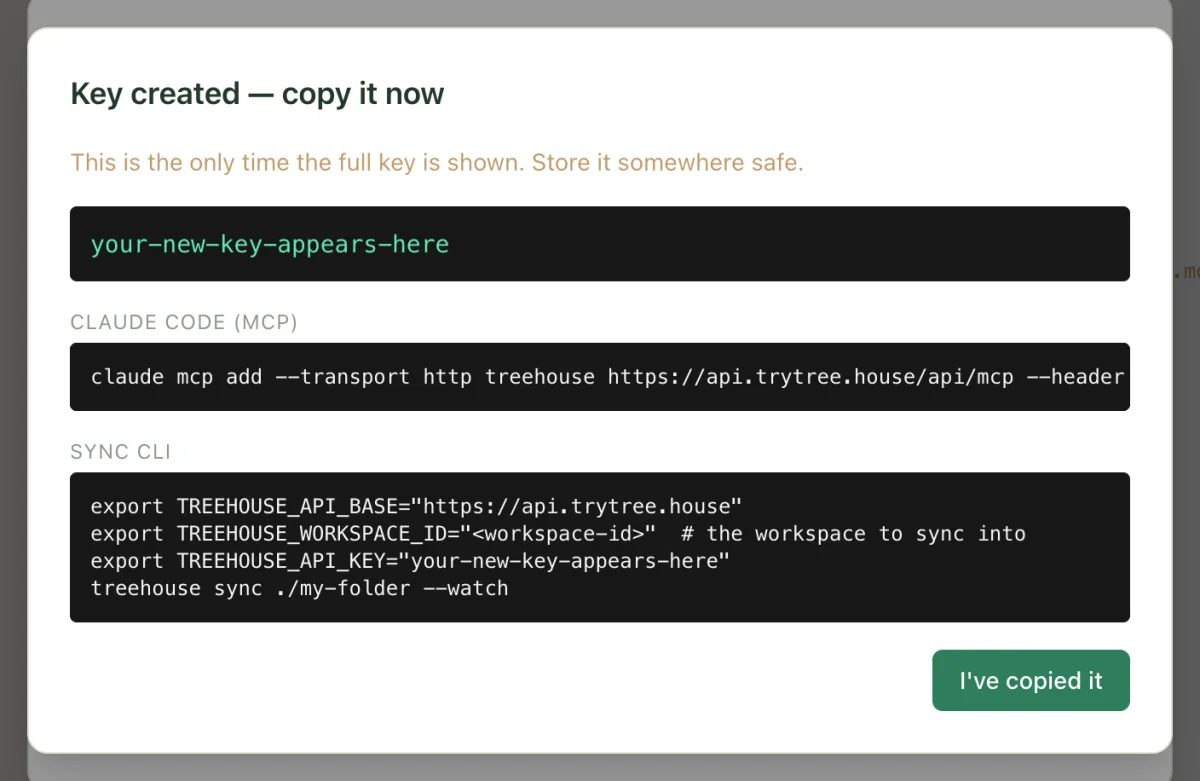
- Copy the key, and the ready-made command for Claude Code or the sync CLI if you need them.
- Select I've copied it. The full key is never shown again.
What a key can reach
Keys you create in the API keys dialog are account-wide: they work in every workspace you belong to, and agents using them choose a workspace per request.
The desktop app and the sync CLI get a different kind of key when you approve them in the browser. Those are tied to the one workspace you chose, and are named Treehouse Desktop or treehouse-cli in your list.
Either way, a key can do what you can do in that workspace, and no more. It can't see other members' private files, and it can't create public links, invite people or manage keys, whatever it's used for.
Revoke a key
- Open API keys from the account menu.
- Find the key by its name and the first few characters shown beside it.
- Select Revoke, then confirm.
Anything using the key stops working immediately. Revoking a Treehouse Desktop or treehouse-cli key stops that folder syncing; the desktop app shows Sign in needed for it.
When someone leaves a workspace
When a member is removed, the keys tied to that workspace (their desktop app and CLI keys) are deleted straight away. Their account-wide keys keep working in their other workspaces but are refused in the one they left.
Keep keys safe
- Treat a key like a password. Anyone who has it can read and change your workspaces.
- Don't paste keys into files inside a synced folder. Everything in the folder syncs to the workspace, where your teammates can read it.
- Prefer client settings that read the key from an environment variable or a secure prompt, like the VS Code and Codex examples.
- Revoke keys you no longer use. If you think a key has leaked, revoke it and create a new one.
Related
- Connect Claude Code
Give Claude Code access to a workspace through your synced folder, the Treehouse MCP server, or both.
- Authentication
How API keys work, what each kind of key can reach, the device authorisation flow the CLI and desktop app use, and how keys are revoked.
- Security and privacy
How Treehouse encrypts your files, who can see what in a workspace, and how keys, share links and HTML pages are kept in check.
Last updated