
See what changed in a workspace
The activity feed shows every change and comment in a workspace, who made it, and whether it came from a person or an agent.
Every write, move, delete, restore, conflict and comment in a workspace is recorded, with who did it. The activity feed is where you read that record.
Steps
- In the sidebar, select Activity. A number on the button shows how many changes are new since you last looked.
- A drawer opens with the 15 most recent groups of changes. Select any file name to open it.
- For everything else, select See all activity. This opens the full feed, headed with the workspace name and Activity.
- When you've caught up, select Mark all seen.
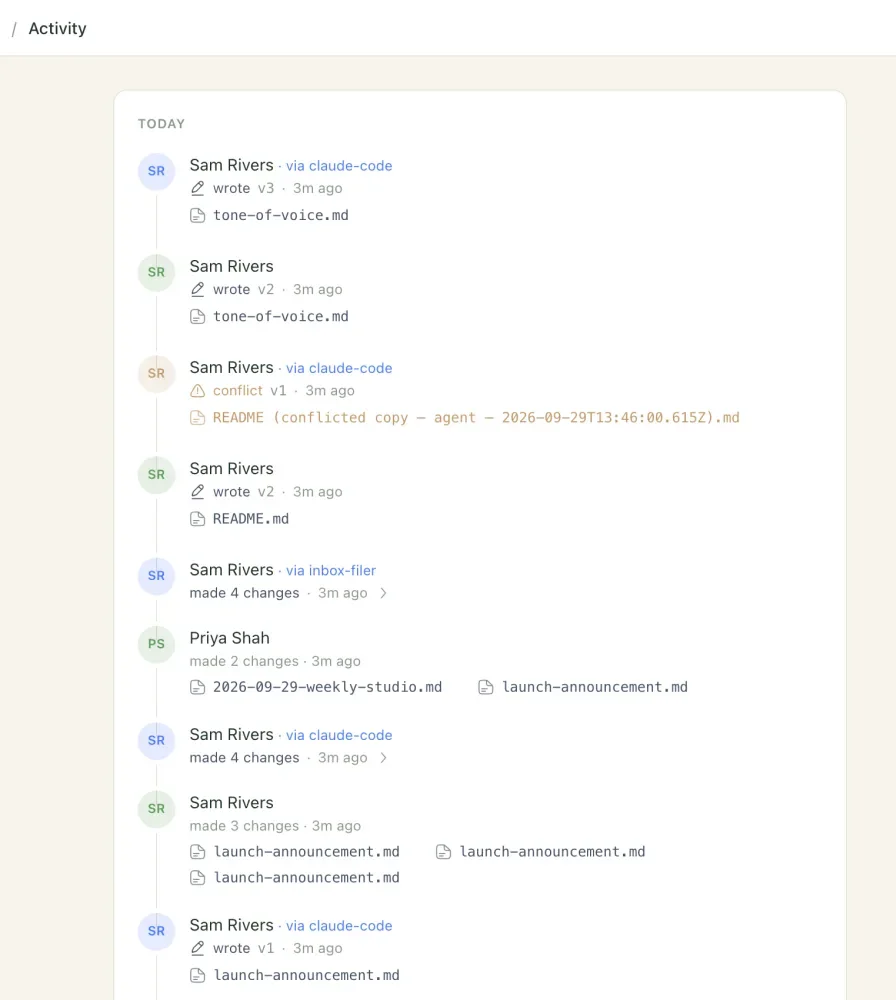
The feed checks for new activity every 15 seconds, so you can leave it open.
Reading the feed
Changes are grouped under Today, Yesterday and then by date. A line marked New since you were here separates what's new from what you've already seen.
Each entry says who did what, to which file, and at which version:
| Label | Meaning |
|---|---|
| wrote | Created or changed a file |
| restored | Brought back an earlier version from history |
| moved | Moved or renamed a file or folder |
| deleted | Deleted a file or folder |
| conflict | Two edits clashed and a conflicted copy was kept |
| commented | Started a comment thread |
| replied | Replied to a thread |
| resolved a comment | Resolved a thread |
| reopened a comment | Reopened a resolved thread |
When the same person or agent makes several changes within about 5 minutes of each other, they're grouped into one entry, such as "wrote 14 files". Expand it to see each file.
People and agents
Changes are marked by who made them, in two colours: one for people and one for agents (you can change both in Appearance).
- A person's change shows their name.
- An agent's change shows the name of the person who owns the agent's key, followed by "· via" and the key's name, for example "Sam · via claude-code". Each agent key is grouped separately, so an agent's burst of edits never merges with its owner's own changes.
Changes from a synced folder count as yours
Attribution goes by the credential that made the change, not by what was typing. The desktop app and the sync CLI connect with a device key that belongs to you (named "Treehouse Desktop" or "treehouse-cli"), so everything that arrives through your synced folder is shown as your change. That includes edits made in the folder by an agent like Claude Code.
To have an agent's work labelled as the agent's own, connect it over MCP with its own API key whose Used by is set to Agent (MCP). How agents work with Treehouse explains the two routes.
Check it worked
Make a small edit to a file, then open Activity. Within 15 seconds your change appears at the top under Today, with your name and the new version number.
Related
- How agents work with Treehouse
The two ways an agent can reach a workspace, what it can do there, and how its work shows up for everyone else.
- Manage API keys
Create a key for each agent, see which keys can reach your workspaces, and revoke the ones you no longer need.
- See and restore earlier versions
Look through every change to a file, see who made it, view or restore an older version, and catch up on what changed while you were away.
- Conflicted copies
When two edits to the same file collide, Treehouse keeps both. Here's what a conflicted copy is, how to spot one and how to resolve it.
Last updated