
Sync a folder with the CLI
Install the treehouse command-line tool to sync a folder on Windows, Linux, a server or any machine where the desktop app doesn't run.
The treehouse CLI keeps a folder in sync with a workspace, just like the desktop app, from a terminal. Use it on Windows and Linux, on a headless machine, or on a server where your agents run. It uses the same sync engine as the desktop app, so how sync works applies here too.
Steps
- Install the CLI.
On macOS or Linux:terminalcurl -fsSL https://dl.trytree.house/install.sh | sh
This installstreehouseto~/.local/bin. If that isn't on yourPATH, the installer tells you the line to add.
On Windows, in PowerShell:powershellirm https://dl.trytree.house/install.ps1 | iex
This installstreehouse.exeand adds it to yourPATH. Open a new terminal afterwards.
Both installers check the download's checksum and don't need admin rights. - Connect a folder:terminal
treehouse login ~/my-folder - Your browser opens at Approve this device. Check the code matches the one in your terminal. On a machine without a browser, open the address the command prints on any device you're signed in on.
- Choose the workspace to sync and select Connect to followed by its name.
- When you see You're connected 🌳, go back to the terminal.
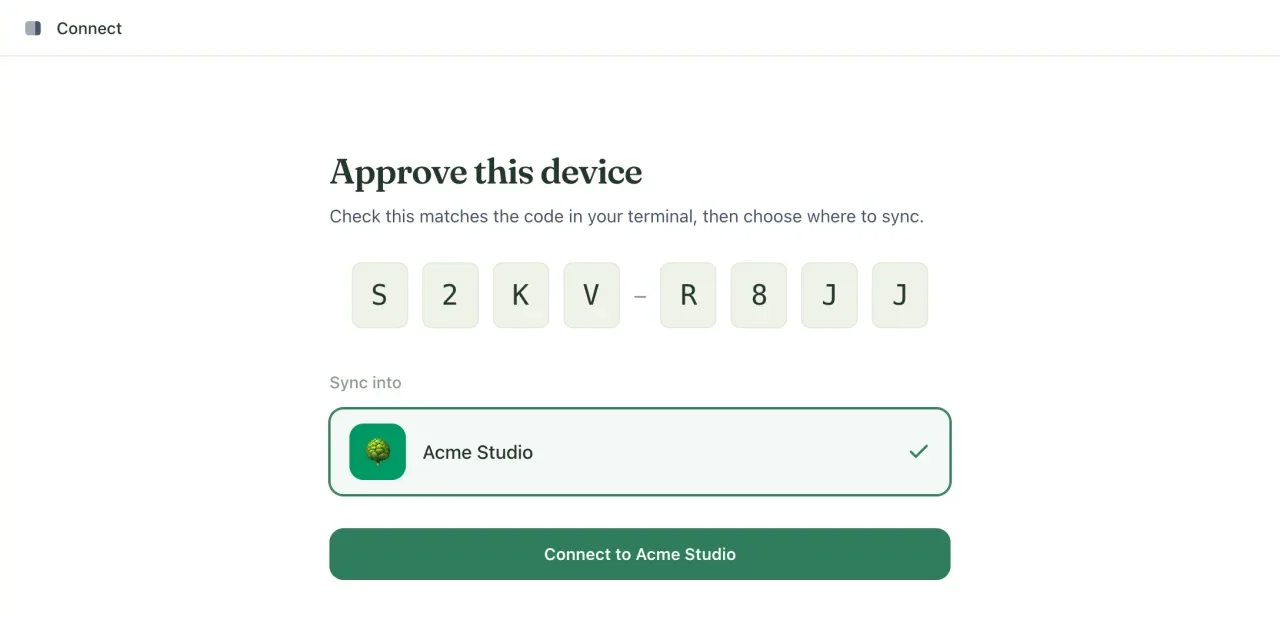
The code is valid for 10 minutes. If it expires, run treehouse login again.
The folder now syncs in the background. The sync process starts automatically when you log in to the computer: through launchd on macOS, a systemd user service on Linux (or an autostart entry where systemd isn't available), and a logon task on Windows.
Check it worked
treehouse status
Your folder is listed with its state. Add a file to the folder and it appears in the workspace within a few seconds.
Everyday commands
| Command | What it does |
|---|---|
treehouse status | Show every synced folder and its state. |
treehouse pause [folder] | Pause syncing a folder. It stays connected. |
treehouse resume [folder] | Resume a paused folder. |
treehouse logs -f | Follow the sync log live. treehouse logs --path prints where the logs are. |
treehouse update | Download and install the latest version, then restart the background process. |
treehouse relocate <folder> <new-path> | Move a synced folder and keep it connected. |
treehouse unlink [folder] | Stop syncing a folder. Its files stay where they are. |
treehouse stop / start / restart | Stop the background process (and its autostart), start it, or restart it. |
treehouse sync [folder] --watch | Sync in the foreground instead, until you press Ctrl+C. Without --watch it syncs once and exits. |
Run treehouse help for the full list, or see the CLI reference for every command and flag.
On a Mac with the desktop app, the CLI and the app share one list of synced folders and one background process, so either can manage any folder.
Troubleshooting
The installer says my platform isn't supported
Ready-made builds cover macOS on Apple silicon, Linux on arm64 and Windows. On other machines, such as Linux on x64, the installer stops with a message. Use the web app there for now.
treehouse: command not found
The install folder isn't on your PATH. On macOS and Linux, add export PATH="$HOME/.local/bin:$PATH" to your shell profile. On Windows, open a new terminal.
Related
- Sync CLI reference
Every treehouse command and flag, the files and environment variables the CLI reads, and the safety rules it follows while syncing.
- How sync works
What the sync engine does in the background, which files it skips, and how it protects your work when things go wrong.
- Manage synced folders
Check sync status, pause, move or stop syncing a folder, add another workspace, and sign out, all from the Treehouse icon in your menu bar.
Last updated