
Find and view files
Browse the file tree, search by name, and see how Treehouse shows markdown, HTML, code, images and everything else.
Browse the tree
The sidebar shows every file and folder you can see in the workspace. Select a folder's arrow to expand it, or its name to open it. The first row, with a house icon and the workspace's name, is the workspace root.
To open or close every folder at once, select the ⋯ next to the search box and choose Expand all or Collapse all.
Search for a file
- Select Search files… at the top of the sidebar and start typing.
- Use ↑ and ↓ to move through the results.
- Press Enter to open the highlighted file or folder, or select it.
- Press Esc to clear the search and go back to the tree.
Search matches file and folder names and paths, not what's inside files. Opening a result also reveals it in the tree, where you can rename, move or delete it. If there are too many matches, the list tells you to narrow your search.
How each kind of file is shown
| File | What you see |
|---|---|
Markdown (.md, .markdown) | Rendered as a document. Front matter appears as a collapsed Metadata card above it. |
HTML (.html, .htm) | Rendered full width in a sandbox, with scripts off. See publish an HTML page. |
Text and code (.txt, .json, .csv, .css, .js, .ts and other text files) | Shown with syntax highlighting. |
| Images (PNG, JPEG, GIF, WebP, SVG) | Shown inline. |
| Anything else, including PDFs | A card with the file's name, size, "not previewable" and a Download button. There's no PDF viewer yet. |
The top bar
The top bar shows where you are as a breadcrumb, with the controls for the open file on the right.
- Reading, Source and Changes switch between views of a file. Source shows the raw markdown or HTML. Changes appears on a markdown file that has changed since you last opened it; see version history.
- Edit opens the file in the editor. See create and edit files.
- The ⋯ menu holds Refresh, Download and Copy path. On a folder with a front page it also has Open file, and on an HTML page with scripts it has Run scripts.
- The panel icons at either end are Hide sidebar / Show sidebar on the left and Hide details / Show details on the right.
On a phone, the view switcher moves into the ⋯ menu.
The details panel
Show details opens a panel on the right with four tabs, shown as icons along its top: Info, History (with a count of versions), Comments (markdown files only) and Share.
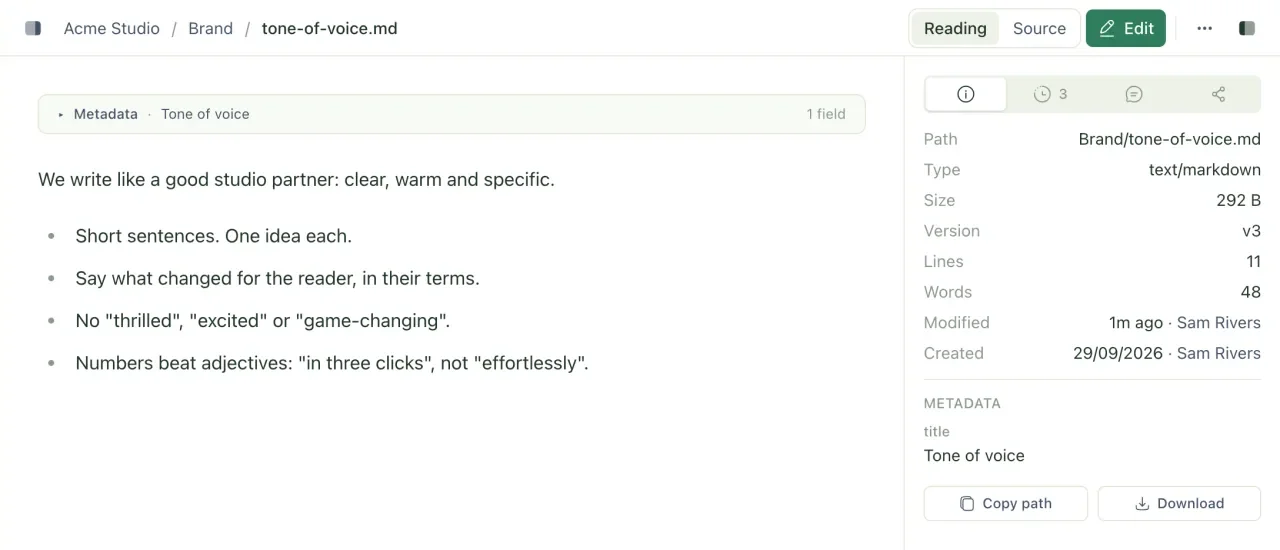
The Info tab lists:
- Path, Type, Size and Version (for example
v4). - Dimensions for images, and Lines and Words for text files.
- Modified and Created, with who did it.
- The file's front matter under Metadata, for markdown files.
- Copy path and Download buttons.
With a folder selected, the panel shows the folder's path and how many folders and files it holds. With nothing selected, it shows the workspace's details.
Links between files
Relative links and images in markdown and HTML files resolve from the file's own folder, the same way they would on disk. In projects/acme/README.md,  shows projects/acme/plan.png, and [Notes](../notes.md) opens projects/notes.md. A link starting with / resolves from the workspace root. Selecting a link to another file opens it in the app.
The files themselves are never rewritten, so the same links keep working in a synced folder and for agents.
Related
- Create and edit files
Make new files and folders in the web app, edit markdown, code and HTML, and save your changes.
- Turn a folder into a page or calendar
Give a folder a front page with a README, or show a folder of dated notes as a calendar you can reschedule by dragging.
- See and restore earlier versions
Look through every change to a file, see who made it, view or restore an older version, and catch up on what changed while you were away.
Last updated