
See and restore earlier versions
Look through every change to a file, see who made it, view or restore an older version, and catch up on what changed while you were away.
Every save, by a person or an agent, makes a new version of a file. Nothing is overwritten, so you can always look back or go back.
Open a file's history
- Open the file and select Show details in the top bar.
- Select the History tab (the clock). The number next to it is how many changes are listed.
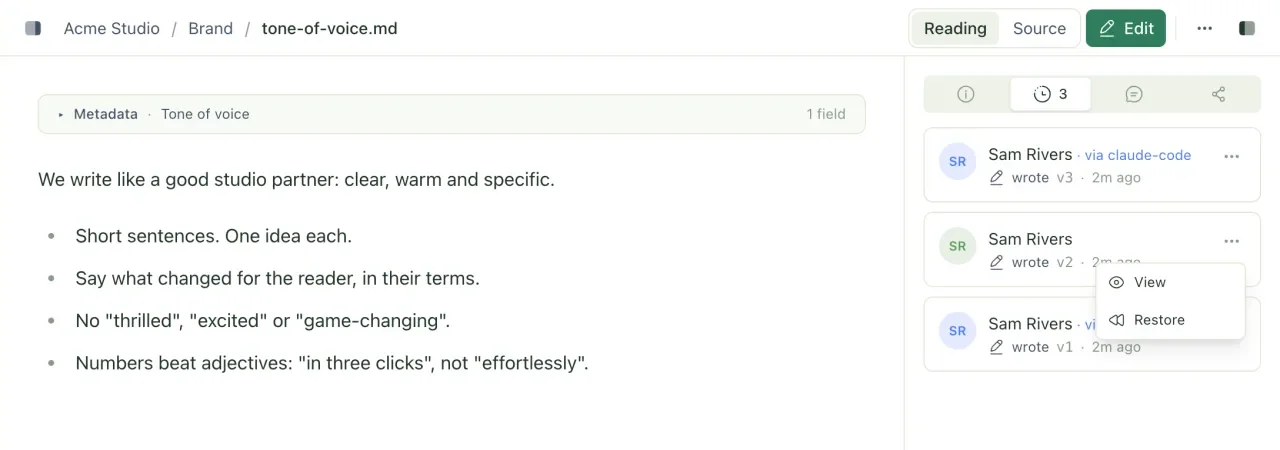
Each card shows one change, newest first:
- Who made it. An agent's changes are marked as an agent's, with its API key's name after "via", so you can tell its work from a person's.
- What happened: wrote, restored, moved, deleted or conflict.
- The version it created, such as
v7, and when. Hover over the time to see the exact date.
View an older version
- On the version's card, select Actions (the ⋯).
- Select View.
The version opens in a window above the file. Text is shown as plain text, images as images, and other files as a download link.
Restore an older version
- On the version's card, select Actions, then Restore. You can also select Restore this version while viewing it.
- When asked "Restore v3 as a new version?" (with that version's number), select Confirm.
The old contents become the newest version, on top of everything else. Nothing is deleted: the versions in between stay in the history, so you can restore one of those instead if you change your mind.
Only changes that saved content can be viewed or restored: writes, moves and earlier restores. Deletions and conflict entries have no Actions button.
See what changed since you last looked
When you open a markdown file that has changed since your last visit, a banner above it says Updated since you last looked, followed by the version you last saw, such as "you last saw v4". Underneath is a summary, such as "2 new versions · 1 new comment".
- Select See what changed, or Changes · 2 in the top bar.
- Read the document with added words highlighted and removed words struck through. The header shows which versions are being compared, such as
v4 → v6. - Select Back to the document, or Reading in the top bar, when you're done.
Select Dismiss to hide the banner and mark the file as seen. Otherwise it's marked as seen when you leave it. The first time you open a file there's nothing to compare, so no banner appears. This works for markdown files only.
If a file was saved again but nothing you'd read changed (only formatting or front matter), the Changes view says so.
How long history is kept
Treehouse currently keeps the full history of every file on every plan.
The History tab draws on the workspace's recent activity, so in a busy workspace a file's oldest changes can drop off the list even though they're still stored. Agents and scripts can read any recorded version through the API; see versions and conflicts.
Moved and renamed files
A file that's moved or renamed starts again at version 1, and its History tab starts fresh. Its earlier changes stay in the activity feed under the old path. See rename, move and organise files.
Related
- Conflicted copies
When two edits to the same file collide, Treehouse keeps both. Here's what a conflicted copy is, how to spot one and how to resolve it.
- See what changed in a workspace
The activity feed shows every change and comment in a workspace, who made it, and whether it came from a person or an agent.
- Versions and conflicts
The concurrency contract every Treehouse client shares - version numbers, compare-and-swap writes, conflicted copies, deletes, moves and restores.
Last updated