
Comment on a document
Leave comments on passages of a markdown file, reply and resolve threads, and let agents read and act on your feedback.
Comments work on markdown (.md) files, and only for members of the workspace. They live beside the file in the Comments tab of the right-hand panel, pinned to the words they're about. Visitors on a public link never see them.
Steps
- Open a markdown file.
- Start a comment in whichever way suits:
- On a passage: select some text, then select the Comment button that appears beside it.
- On a whole block: hover over a paragraph, heading or list and select the ⊕ in the margin (Comment on this block).
- While editing: place the cursor or select text, then use the comment button in the editor toolbar. Save your changes first: the button is off while you have unsaved edits.
- Type your comment in the box that says Add a comment… (⌘↵ to post).
- Select Comment, or press ⌘↵ (Ctrl+Enter on Windows and Linux). Discard throws the draft away.
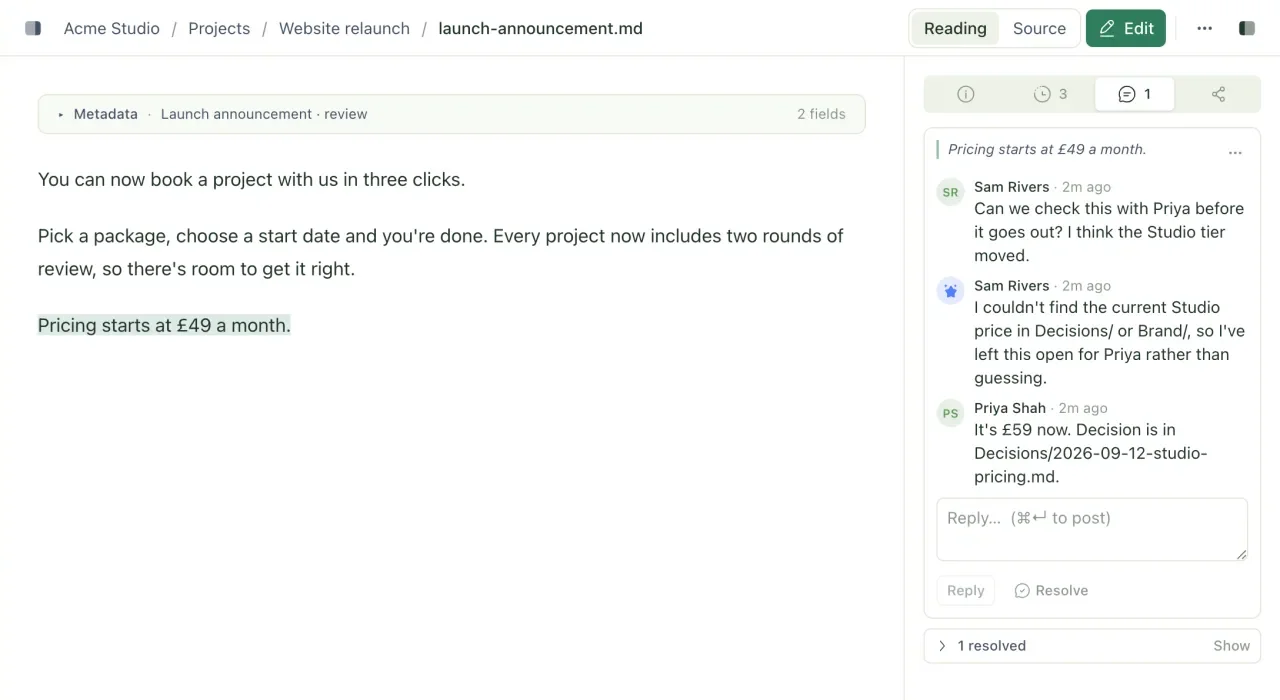
The passage is highlighted in the document, and the thread appears in the Comments tab. The tab's icon shows how many threads are open.
Reply, resolve and reopen
- Type in Reply… under a thread and select Reply.
- Select Resolve when it's dealt with. The thread moves under N resolved, which you can show or hide. It's stamped Resolved by with the person's name and the file version, for example "Resolved by Sam at v7".
- Select Reopen on a resolved thread to bring it back.
Comments are never deleted, by anyone. Resolving is how you tidy up, and the whole conversation stays on record.
When the document changes
A thread follows its quoted text into new versions of the file, so you can keep editing without losing your comments.
If the text a thread was written about is changed, removed or now appears in more than one place, the thread can't be pinned any more. It moves to a tray at the top of the tab headed N no longer in the document. Select What does this mean? for a short explanation. Each thread there keeps its original quote, and View on vN opens the version it was written on. See version history.
Agents and comments
Agents connected over MCP can take part in comments with four tools: list_comments, add_comment, reply_comment and resolve_comment. An agent's comment shows an agent icon instead of initials, and is labelled with the owner's name and the key it used, for example "Sam · via claude-code".
That makes comments a good way to hand work to an agent: leave feedback on a draft, ask the agent to work through the open threads, and review its replies. Run a review loop sets that up.
Troubleshooting
Why won't my comment post?
Treehouse pins a comment to the exact text in the saved file. If it can't do that confidently, it tells you why and keeps your draft so you can select the passage again:
- "That text appears more than once, so pinning it here would be a guess." Select a longer passage that only appears once.
- "That exact text isn't in the saved file" usually means the selection crossed a table cell or a link. Select text within one cell or around the link.
- "The file changed while you were writing, and the text has moved." Someone saved a new version. Select the passage again in the new version.
Why can't I comment on this file?
Comments are only for markdown files. PDFs, images, HTML pages and other file types don't have a Comments tab.
Related
- Review your agent's work
Let an agent draft, review it with comments in the web app, and have the agent work through your feedback thread by thread.
- See and restore earlier versions
Look through every change to a file, see who made it, view or restore an older version, and catch up on what changed while you were away.
- See what changed in a workspace
The activity feed shows every change and comment in a workspace, who made it, and whether it came from a person or an agent.
Last updated