
Turn a folder into a page or calendar
Give a folder a front page with a README, or show a folder of dated notes as a calendar you can reschedule by dragging.
A folder doesn't have to open as a list of files. Put the right file in it and it opens as a page, or as a calendar of what's inside.
Give a folder a front page
- Add a file called
README.mdto the folder. - Select the folder in the sidebar.
The README now shows when you open the folder. Treehouse looks for these files, in this order, and uses the first it finds:
README.mdindex.mdindex.html
Case doesn't matter, so readme.md works. If a folder has more than one spelling of the same name, the exact spelling above wins, otherwise the first alphabetically. This works for the workspace root too: a README.md at the top of the workspace becomes its front page.
When a folder has a front page, the top bar shows a switcher with the page's file name and Files, plus Calendar if the folder has dated notes.
Edit a folder's front page
The front page is read-only while you're looking at the folder. To change it:
- Select ⋯ in the top bar, then Open file.
- Select Edit.
An index.html front page is shown full width, like any HTML page.
Give a folder a nicer heading
Add a title to the front page's front matter. It replaces the folder's name as the heading of the Files and Calendar views. The breadcrumb still shows the real folder name.
---
title: Social content
---

Posts for the next quarter, one file per post.
Show a folder as a calendar
Any markdown file directly inside the folder with a date in its front matter appears on the folder's calendar.
- Add a
dateinYYYY-MM-DDform to each note's front matter. - Select the folder, then Calendar in the top bar.
---
title: Launch post
date: 2026-10-14
---

Draft of the launch announcement.
Calendar appears on any folder with dated notes, whether or not it has a front page. Each note is labelled with its title, or its file name if it has none. Files without a valid date, files that aren't markdown, and files in subfolders are left off. Select a note to open it.
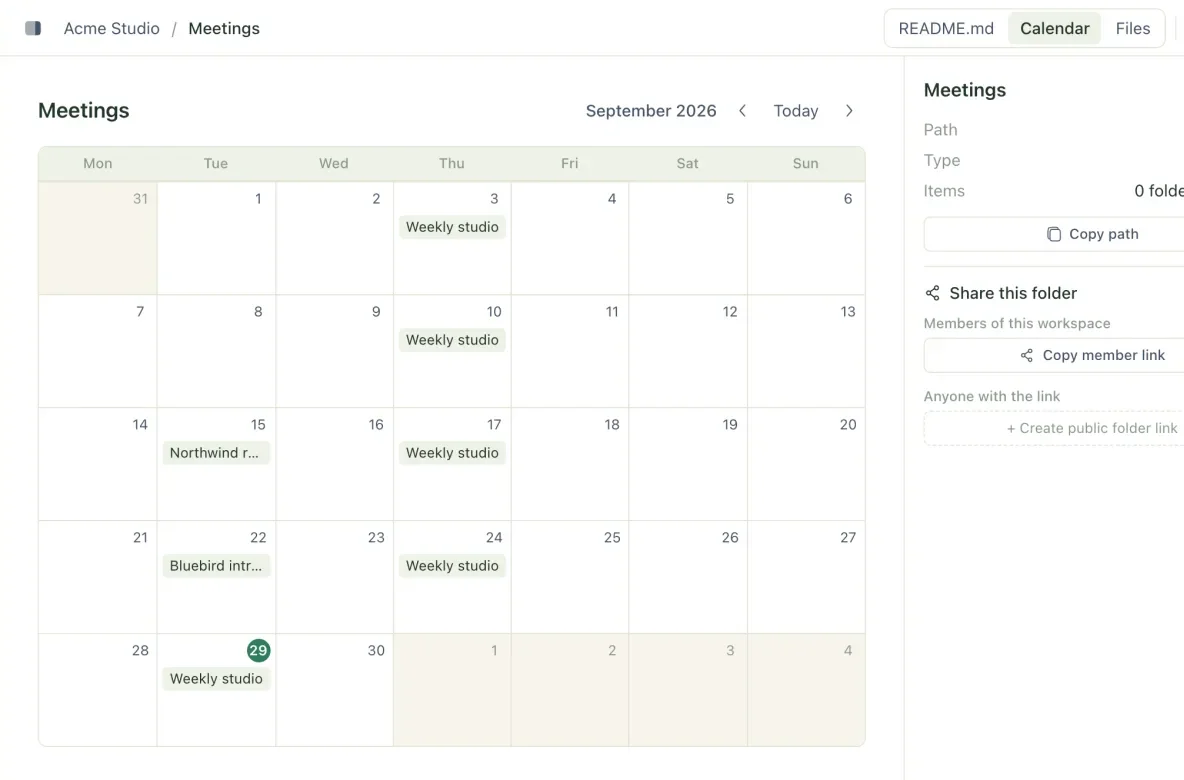
The calendar opens on the current month. Use Previous month, Today and Next month to move around. A busy day shows three notes and a +N more button for the rest. On a phone, the month is shown as a list of the days that have notes.
Open a folder as a calendar by default
Add view: calendar to the folder's README.md (or index.md) front matter:
---
title: Social content
view: calendar
---
The folder then opens on the calendar, as long as at least one note in it has a valid date. The front page is one click away in the switcher.
Reschedule by dragging
Drag a note to another day. Treehouse rewrites the date in that file's front matter and saves it as a new version, so the change shows up everywhere, including synced folders and agents. Saving re-writes the whole front matter block, so its formatting may be tidied, and a date with a time becomes a plain date.
Dragging isn't available on a phone. Change the date in the note itself instead.
If someone else saved the note at the same moment, you'll see that it "changed on the server, so your reschedule was kept as a copy". The original keeps its date, and your version is saved as a conflicted copy.
People viewing a shared link to the folder see the calendar too, but can't move anything.
Troubleshooting
Calendar doesn't appear in the switcher
No markdown file directly in the folder has a valid date. Check that the date is inside the front matter (between the --- lines at the very top), is written YYYY-MM-DD, and is a real day. At the workspace root, the switcher only appears once the root has a README.md.
Related
- Front matter reference
The YAML block at the top of a markdown file, and the keys Treehouse reads from it to label, title and schedule your files.
- Publish an HTML page
Show HTML files as full pages, decide when their scripts may run, and share them publicly as reports, dashboards or decks.
- Shape your workspace
Folder structures that work for people and agents alike, and the handful of habits that keep a workspace easy to navigate as it grows.
Last updated