
Create and edit files
Make new files and folders in the web app, edit markdown, code and HTML, and save your changes.
Where new files and folders go
New files, new folders and uploads land in the folder you're working in:
- the selected folder, if you've selected one;
- otherwise the folder of the file that's open;
- otherwise the workspace root.
To aim at the root, select the first row of the tree, the one with the workspace's name.
Create a file
- Select New file at the top of the sidebar. To create it in a particular folder instead, hover over that folder and select New file in this folder (the plus icon).
- Type a name in the row that appears, such as
meeting-notes. The placeholder readsname.md. - Press Enter. Press Esc to cancel.
A name without an extension becomes a markdown file, so meeting-notes is saved as meeting-notes.md. Any extension you type is kept as it is. The new file opens straight in the editor.
If you see "A file with that name already exists.", pick another name. Names can't contain /.
Create a folder
- Select New folder.
- Enter a name when asked for the New folder name.
An empty folder holds a hidden .keep file so that it exists on disk too. The web app hides it, and you'll only notice it in a synced folder.
Edit a file
Markdown, plain text, code and HTML files can be edited. Images and other files can't.
- Open the file and select Edit in the top bar.
- Make your changes. A small dot next to the file name means there are unsaved changes.
- Select Save, or press ⌘S / Ctrl+S.
- Select Done to go back to reading.
If you select Done, open another file or leave the page with unsaved changes, you're asked Discard unsaved changes? Cancel to stay in the editor.
Every save makes a new version, so you can always go back. See version history.
The markdown editor
Markdown opens in Rendered mode, where you edit the formatted document directly. Switch to Source to edit the raw markdown, including the front matter.
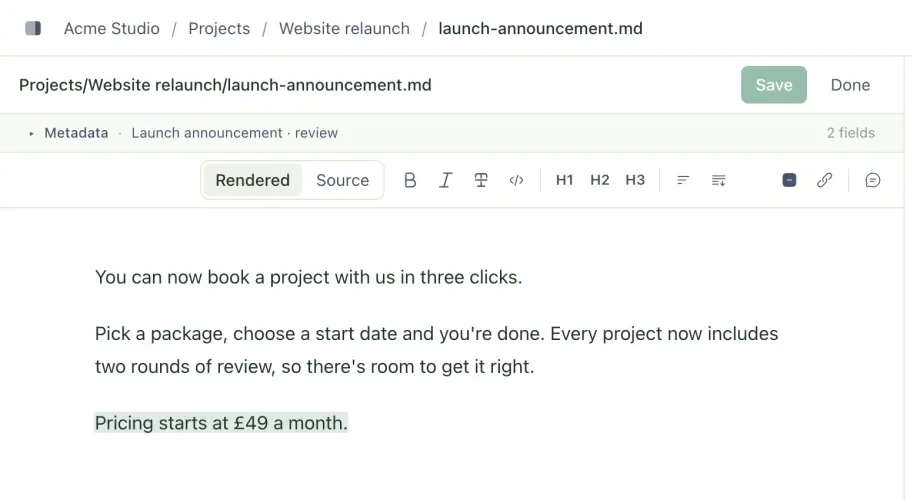
The toolbar has Bold, Italic, Strikethrough, Inline code, Heading 1 to Heading 3, Bullet list, Numbered list, Quote, Divider and Link, plus a button to comment on the selected text.
If the file has front matter, a collapsed Metadata form sits above the document. Expand it to change existing values without touching YAML. To add or remove fields, or change nested values, use Source. Front matter reference lists the keys Treehouse understands.
Code and HTML
Text, code and HTML files open in a code editor with syntax highlighting. ⌘S / Ctrl+S saves from here too.
If the file changes while you're editing
Someone else, or an agent, might change the file while you have it open. Treehouse never quietly overwrites either version.
- "This file was changed on the server while you were editing." Select Reload to load the latest version (your unsaved changes are discarded, after a warning), or Dismiss to keep editing.
- "This file changed on the server, so your save was kept as a copy: …" Your save arrived after someone else's. Your version is safe in the copy named in the message, and the original holds theirs. Select Reload latest to see their version, then combine the two. See conflicted copies.
If the file was deleted while you were editing, saving brings it back.
Troubleshooting
Why are New file and New folder greyed out?
The workspace is read-only because its subscription has lapsed. The banner at the top of the page explains what to do. You can still read and download everything. See plans and limits.
Related
- Front matter reference
The YAML block at the top of a markdown file, and the keys Treehouse reads from it to label, title and schedule your files.
- Conflicted copies
When two edits to the same file collide, Treehouse keeps both. Here's what a conflicted copy is, how to spot one and how to resolve it.
- See and restore earlier versions
Look through every change to a file, see who made it, view or restore an older version, and catch up on what changed while you were away.
Last updated