
Track work on a board
Show a folder of markdown files as coloured columns of cards, and move work along by dragging a card or changing one line of front matter.
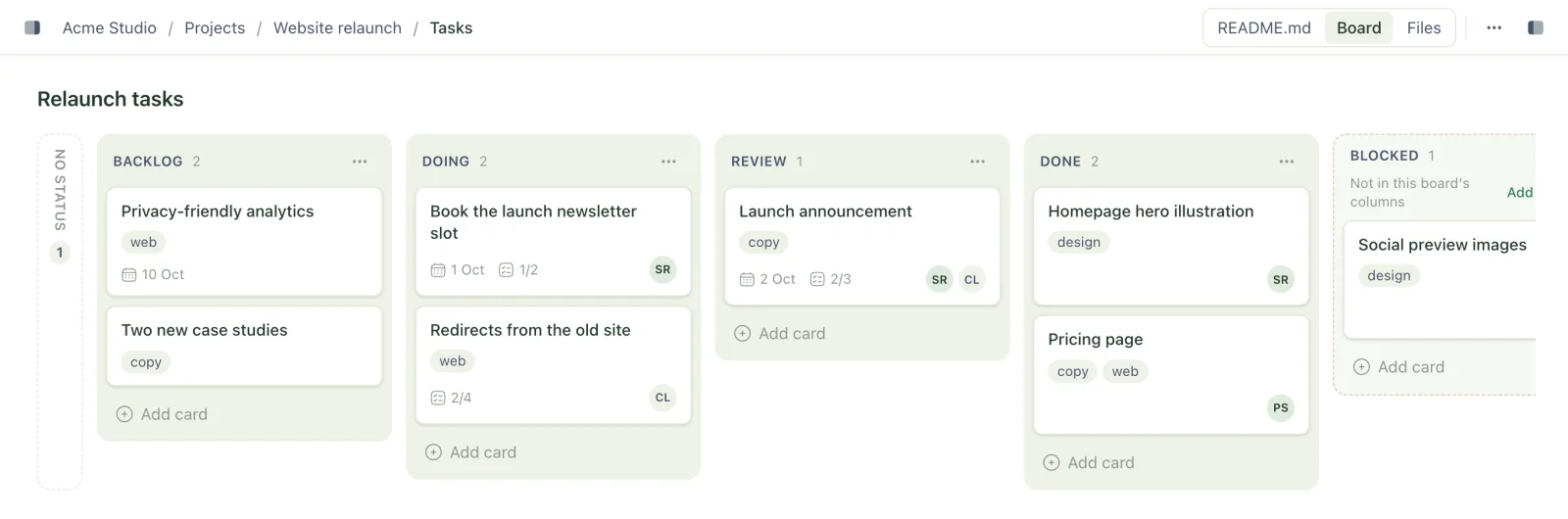
A board is a folder seen as columns. Each markdown file directly inside the folder is a card, and the status in its front matter says which column it sits in. Moving a card changes that one line, so you, your team and your agents all move work the same way.
Make a board
- In the sidebar, select ⋯ next to the search box, then New board.
- Type a name and press Enter.
The new folder opens as an empty board with To do, Doing and Done columns. It's an ordinary folder with a README.md that declares the board, so you can rename columns, add a front page or ask an agent to fill it.
Turn an existing folder into a board
- Select the folder.
- Select ⋯ in the top bar, then Show as board.
Treehouse adds view: board and a list of columns to the folder's README.md, creating the README if there isn't one. If files in the folder already have a status, those become the columns; otherwise you get To do, Doing and Done. Files with no status wait in the No status lane.
Show as board isn't offered for a folder fronted by index.html, which has no front matter to hold the setting.
How a board is written down
The folder's README.md (or index.md) declares the board and its columns, in order:
---
title: Roadmap
view: board
columns: [Backlog, Doing, Review, Done]
---
Each card is a markdown file in that folder:
---
title: Search filters
status: Doing
due: 2026-10-14
tags: [search, ux]
assignee: [Zef, claude]
---

Let people narrow search by folder and file type.

- [x] API parameter
- [ ] Filter chips
- [ ] Docs
| Key | What the card shows |
|---|---|
title | The card's name. Without it, the file name. |
status | The column. Matched to columns ignoring case, so doing lands in Doing. |
order | Its place in the column, lowest first. Set for you when you drag. |
due | A date chip. Falls back to date if there's no due. |
tags | Labels. Shown as chips unless the README's card_fields says otherwise. |
assignee | A name, or a list of names. A workspace member's name shows their avatar; anyone else shows initials. |
Task lines in the body (- [ ] and - [x]) show as a checklist count, such as 1/3.
The README's view: board makes the folder open on the board. Without it, Board still appears in the top-bar switcher whenever a file in the folder has a status.
Move a card
- Drag it to another column, or up and down within one. A line shows where it will land.
- Or use its menu: select ⋯ on the card, then Move to… and a column. The card goes to the bottom of that column.
Dragging within a column writes an order to the card you moved, and nothing else. Cards nobody has arranged yet sit below the arranged ones in title order, so a card dropped among them lands just above them.
Every move is a new version of that one file, so it shows up in synced folders and to agents straight away. If someone else saved the card at the same moment, your move is kept as a conflicted copy, which appears on the board with a Conflicted copy badge.
Add cards and columns
- Add card at the foot of a column asks for a title and creates the file with that
status. The box stays open so you can add several in a row. - Add column, at the end of the board, adds a name to
columns. - A column's ⋯ menu can Rename it or Remove it. Renaming also updates the
statusof every card in the column, after asking. Only an empty column can be removed.
If a card has a status that isn't in columns (an agent wrote Blocked, say), it isn't hidden: it gets its own column at the end, marked Not in this board's columns, with an Add to columns button.
Colour a column
- Select ⋯ at the top of the column.
- Under Colour, pick one, or the crossed-out circle for none.
The column gets a tint and a dot, which also shows in Move to… and in the column tabs on a phone. There are nine colours: gray, brown, orange, yellow, green, blue, purple, pink and red. Each one is mixed with your theme, so it reads on light and dark themes alike.
In the README, a coloured column is written as a small map instead of a plain name:
---
title: Social videos
view: board
columns:
  - Ideas
  - name: Filming
    color: orange
  - name: Published
    color: green
---
Show more front matter on cards
Cards show their tags as chips to begin with. To show other front matter, such as a company or project on every card:
- Select Fields at the top right of the board.
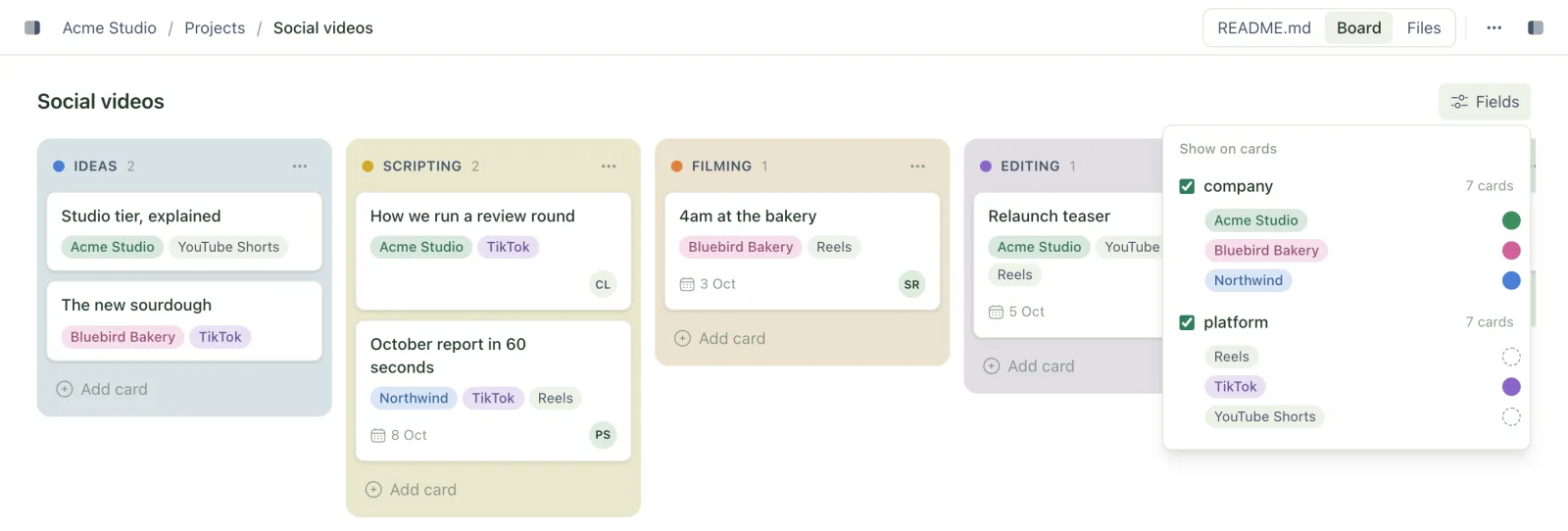
- Tick the keys you want on cards. The panel lists every key your cards use, with how many cards have it.
Each value becomes a chip, so platform: [TikTok, Reels] shows two. Untick a key to take it off the cards.
Colour a field's values
With a key ticked, the panel lists its values underneath. Select the dot beside a value and pick a colour, and every chip with that value takes it: every Northwind card blue, every Bluebird Bakery card pink. Values without a colour stay plain grey.
The choices are kept in the README as card_fields:
---
card_fields:
  - name: company
    colors:
      Northwind: blue
      Bluebird Bakery: pink
  - platform
---
Colours match values ignoring case, so northwind on a card is blue too. If you untick a key that has colours, it stays in card_fields marked hidden: true, so ticking it again brings the colours back. The keys a board already places itself (title, status, order, due, date and assignee) aren't offered as chips.
Cards with no status
Files without a status collect in a No status lane on the left, folded into a narrow strip with a count. Select it to open it. Drag a card out to give it a status, or drag one onto the strip to take its status away. The folder's own README.md is never a card.
Open a card
Select a card to read it in a panel over the board. Edit opens it in the editor, and Open takes you to the file's own page.
Assign a card
Select ⋯ on a card, then Assign…, and pick members of the workspace. Treehouse writes their name into assignee, as text rather than an ID, so the file stays readable. Select a name again to take it off.
To assign someone who isn't a member, or an agent, write their name into assignee yourself. It shows as initials.
On a phone and in shared links
- On a phone the board shows one column at a time, with the column names as tabs. Dragging isn't available; use Move to… instead.
- People viewing a shared link see the board and can open cards, but can't move, add or assign anything. Members' avatars aren't shown to them, only initials.
Troubleshooting
Board doesn't appear in the switcher
No markdown file directly in the folder has a status, and the README doesn't say view: board. Check the status line is inside the front matter, between the --- lines at the very top.
A card is in its own column at the end
Its status doesn't match any of the board's columns. Select Add to columns to keep the new column, or move the card to an existing one.
Related
- Turn a folder into a page or calendar
Give a folder a front page with a README, or show a folder of dated notes as a calendar you can reschedule by dragging.
- Front matter reference
The YAML block at the top of a markdown file, and the keys Treehouse reads from it to label, title, schedule and track your files.
- Write your AGENTS.md
The one file every agent reads first. What to put in it so any agent, in any session, works the way your team does.
Last updated